Wedding Website Countdown: How to Add One + 8 Ideas
How the countdown on your wedding website works, where it shows, what it does after the big day, and 8 ways to use your wedding countdown on save-the-dates and social media.
A wedding website countdown is the little clock that shows how many days, hours and minutes are left until your wedding. It looks like decoration, but it puts the date in front of every guest and gives them a reason to come back. This guide explains how the countdown works, where it shows up, what happens once the day has passed, and a few ways to use it beyond the website.
Disclosure: Wedding Plan is our product and the screenshots come from it. The ideas work with any builder that has a countdown.
What a wedding countdown is for
Guests forget dates. A countdown answers "was it the 12th or the 19th?" before anyone asks. It also:
- Makes the date feel real. "211 days" nudges people to book leave and flights more than "June next year" does.
- Shows the site is current. A ticking clock says the page is alive, not a forgotten draft.
- Is fun for you. Many couples open their own site just to watch the number drop.
Where the wedding website countdown appears
On Wedding Plan, every wedding website template has a calendar-and-countdown section. It appears as soon as your site has a date. On our sample site for James and Anna (Bath, 12 June 2027) it sits just below the couple's introduction. It shows a month calendar with the wedding day circled, and under it a live clock with Days, Hours, Minutes and Seconds.
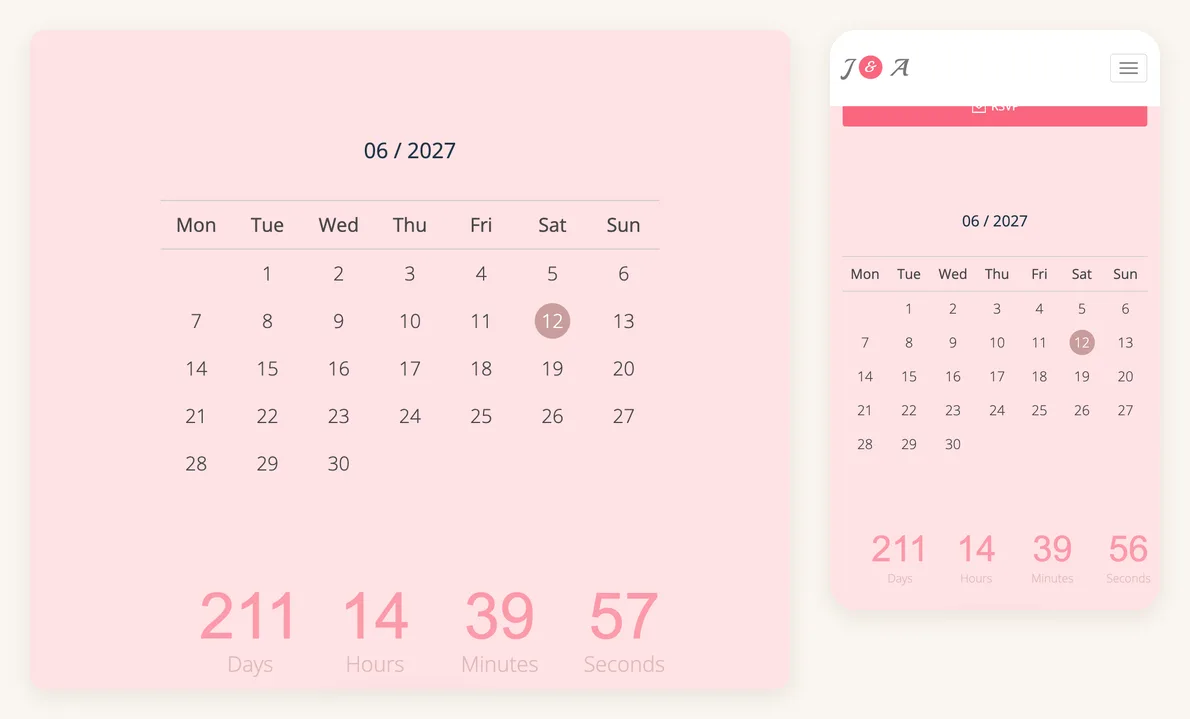
A few details worth knowing:
- It can't be hidden. The Show on website settings cover sections like wishes, RSVP, album and events, but not the calendar and countdown. It's part of every design.
- The labels follow your site language. If your site is set to English, guests see Days, Hours, Minutes, Seconds. Pick another of the 34 languages and the labels change with it.
- The calendar starts on Monday in every design, and the month is written as a number (06 / 2027).
How the date drives it
The countdown uses one thing: your wedding date. You set it when you create the site, and you can change it later from the wedding date tile on your website dashboard. Change the date and the calendar, the circled day and the clock all update on their own. You don't need to touch the design.
It counts down to the start of the wedding day (midnight), not to your ceremony time. So on the morning of the wedding the clock already reads zero days. Event times belong in your events section. If you're still filling in your site, our list of what to put on a wedding website covers that.
A note on time zones
The clock runs in each guest's browser, on their own local time. A guest in Bath and a guest in New York both see it reach zero at midnight on 12 June where they are, which is five hours apart. For days-to-go this barely matters, but don't promise "it hits zero when we say I do".
What happens after the wedding day
The countdown doesn't freeze at zero. Once the wedding day begins, it turns around and starts counting up: days, hours, minutes and seconds since your wedding day. It becomes a quiet "married for 300 days" counter.
It keeps going for as long as your site is online. On Wedding Plan that's 3 months on the free plan, 1 year on VIP and for life on SUPER VIP. If you want the countdown to run from your save-the-dates through the wedding and beyond, check that your plan covers that stretch.
The countdown in the app and on your phone
You get a countdown on the planning side too. The home screen of the Wedding Plan app (and the web app at app.weddingplan.online) opens with your names, your date and a days, hours, minutes and seconds clock.
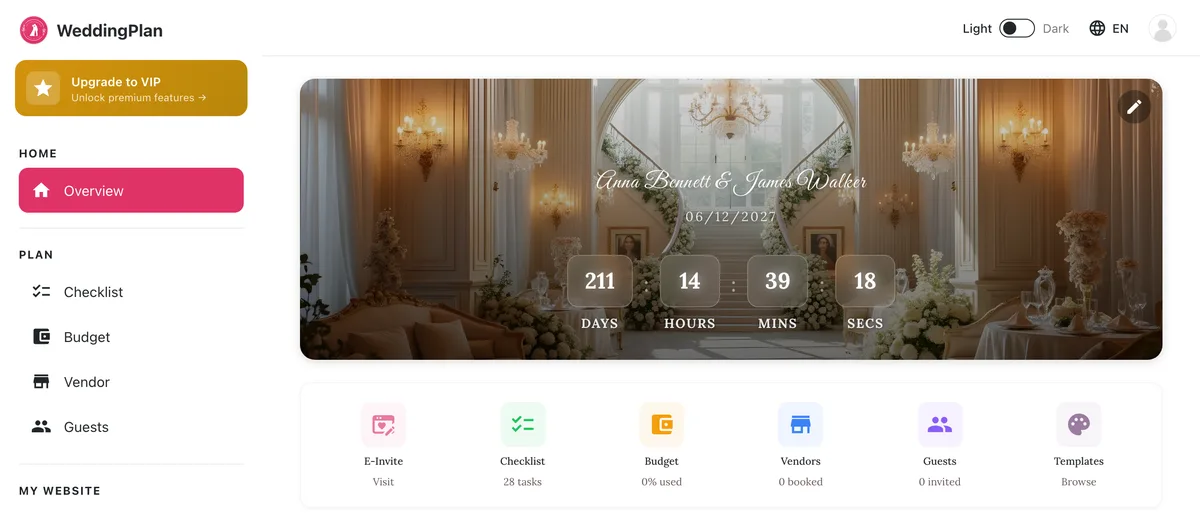
On iPhone and Android you can also put a countdown widget on your home screen. It shows your first names, the date and the days, hours and minutes left, and it updates through the day without opening the app. On iPhone it comes in several sizes and also works on the Lock Screen (iOS 16 and later) and in StandBy. Tapping the widget opens the app. To add it, edit your home screen the usual way for your phone (touch and hold an empty spot, then add a widget) and pick Wedding Plan from the list.
One thing to watch: the widget and the app's home screen use the wedding date in your plan (Edit plan), while your website uses the date you set for the site. They start out the same, but if the date moves, update both. If the widget looks empty, set your wedding date in the app and open the app once so it can sync.
8 ways to use your wedding countdown
- Save-the-dates. Print the site's QR code or link on the card with a line like "Watch the countdown at...".
- Milestone posts. Screenshot the site at 365, 100, 50 and 10 days and share it in your stories or the family group chat.
- RSVP reminders. "60 days to go, and we still need your RSVP!" with the link. See our guide to sharing your wedding website for message wording.
- Phone wallpaper energy. Put the widget on your home screen, and on your partner's.
- Wedding party updates. "90 days: dresses ordered?"
- The last week. One countdown screenshot a day for the final seven days.
- Morning of the wedding. A screenshot reading 00 days is a good first photo of the day.
- Anniversaries. After the day, the clock counts up. Screenshot it at 100 days and one year married.
FAQ
Do I need to add the countdown myself?
Not on Wedding Plan. Every design shows it automatically once your site has a wedding date.
Can I count down to the ceremony time instead of the day?
No. The website countdown targets the start of your wedding day. Put exact times on each event.
What does the countdown show after the wedding?
It counts up from your wedding day, for as long as the site stays online.
Next steps
Want a countdown of your own? Start with the free wedding website builder: add your names and date, and the countdown appears straight away. For the full picture of what a wedding website can do, read our guide, or follow the steps on how to make a wedding website.