Wedding Website QR Code: How to Make One and Where to Put It
How to get a QR code for your wedding website, where it works best (invitations, welcome signs, table cards), how to print it so it scans, and what to write next to it.
A wedding website QR code is the quickest way to get guests from paper to your site. One scan with the phone camera and they're looking at your schedule, map and RSVP button. This guide covers how to get the code, where it earns its place, how to print it so it actually scans, and what to write next to it.
We use a sample site built for these articles, Anna and James's wedding in Bath on 12 June 2027, and its real QR code.
Disclosure: Wedding Plan is our product and the screenshots come from it. The placement, printing and wording tips work with any wedding website QR code.
How to get your wedding website QR code
You don't need a separate QR generator. Wedding Plan makes the code for you from your site's web address.
- On a computer: open your website in the web app and click QR Code. A "Website QR Code" window opens with two buttons: Download saves the code as a PNG file (named wedding-qrcode.png), and Copy URL copies the link.
- On the phone app: tap the QR button on your website screen. Download saves the code to your photo gallery, and Share sends the image straight to a chat or email, which is handy for passing it to your stationer.
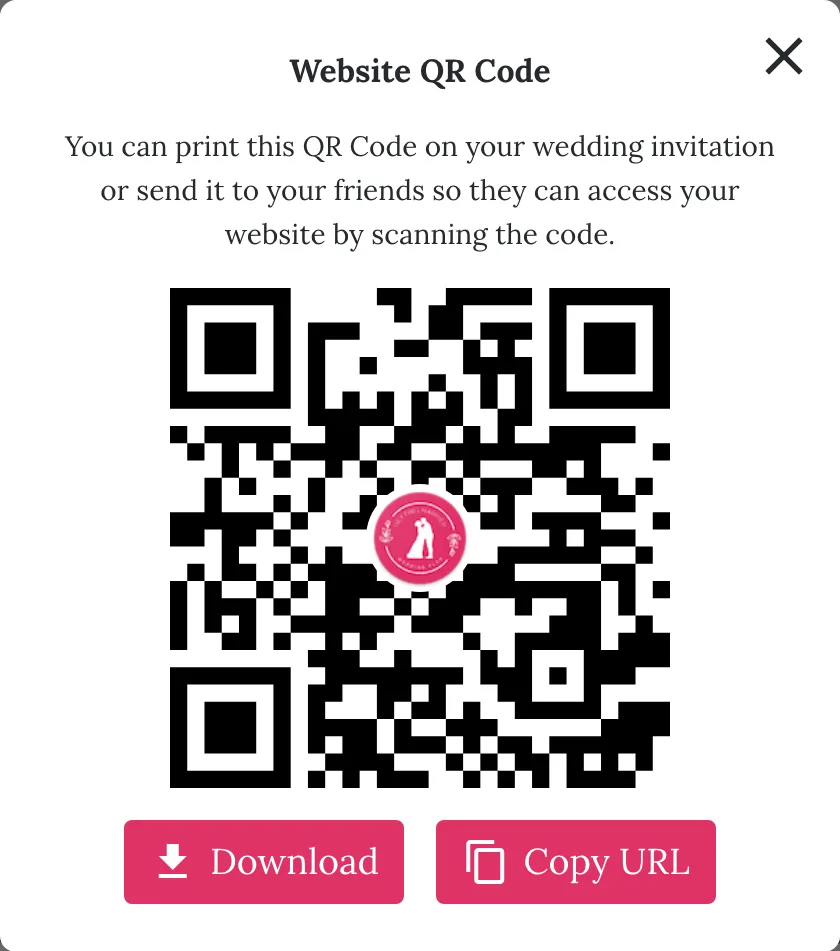
The code simply holds your web address, for example weddingplan.online/anna-and-james. We scanned the sample code and it opens exactly that page. No tracking link, no redirect service that could expire.
Settle the address first
This is the one thing to get right before you print anything.
- Editing the site is fine. Change the photos, add an event, fix a typo in your story: the address stays the same, so the QR code stays the same. Guests always see the latest version.
- Changing the web address is not. You can change it later in settings, but the old address then stops working. There's no automatic redirect, so every printed QR code with the old address leads to a "page not found".
- Check how long the site stays online. On the free plan a site stays online for 3 months, on VIP for 1 year and on SUPER VIP for life. A code printed on save-the-dates only helps if the site is still up when guests scan it.
Where to put the QR code
A QR code works best where guests have a phone in hand and a reason to look something up.
- Save-the-dates: early travel planning. Many guests scan once, bookmark, and come back later.
- Invitations or a details card: the main job here is the RSVP. Put the code near the reply-by date. Our guide on how to share wedding website with guests has invitation wording and a sample card layout.
- Welcome sign at the venue: for the schedule, the map to the reception, or leaving a wish in your guest book section.
- Table cards or place cards: a small code works because guests are sitting right next to it. Good for "leave us a message" during dinner.
- Order of service or programme: for timings of the day and anything that didn't fit on paper.
Printing tips so it actually scans
The points below are general QR printing advice, not Wedding Plan specifications. Phones and printers vary, which is why the last tip matters most.
- Size: about 2 to 3 cm (roughly 0.8 to 1.2 in) wide is a common minimum for a card held in the hand. For a welcome sign that people read from a step or two away, go much bigger, 8 to 10 cm or more. A rough rule: the code should be about a tenth of the distance it's scanned from.
- File size: the downloaded code is a small image, 250 pixels across. That's fine for cards. For a large sign, ask your printer to enlarge it without smoothing ("nearest neighbour"), so the squares stay sharp instead of going blurry at the edges.
- Contrast: dark squares on a light background. Don't invert it (white on black), don't print it in pale gold or blush pink, and avoid foil or glossy finishes that reflect light.
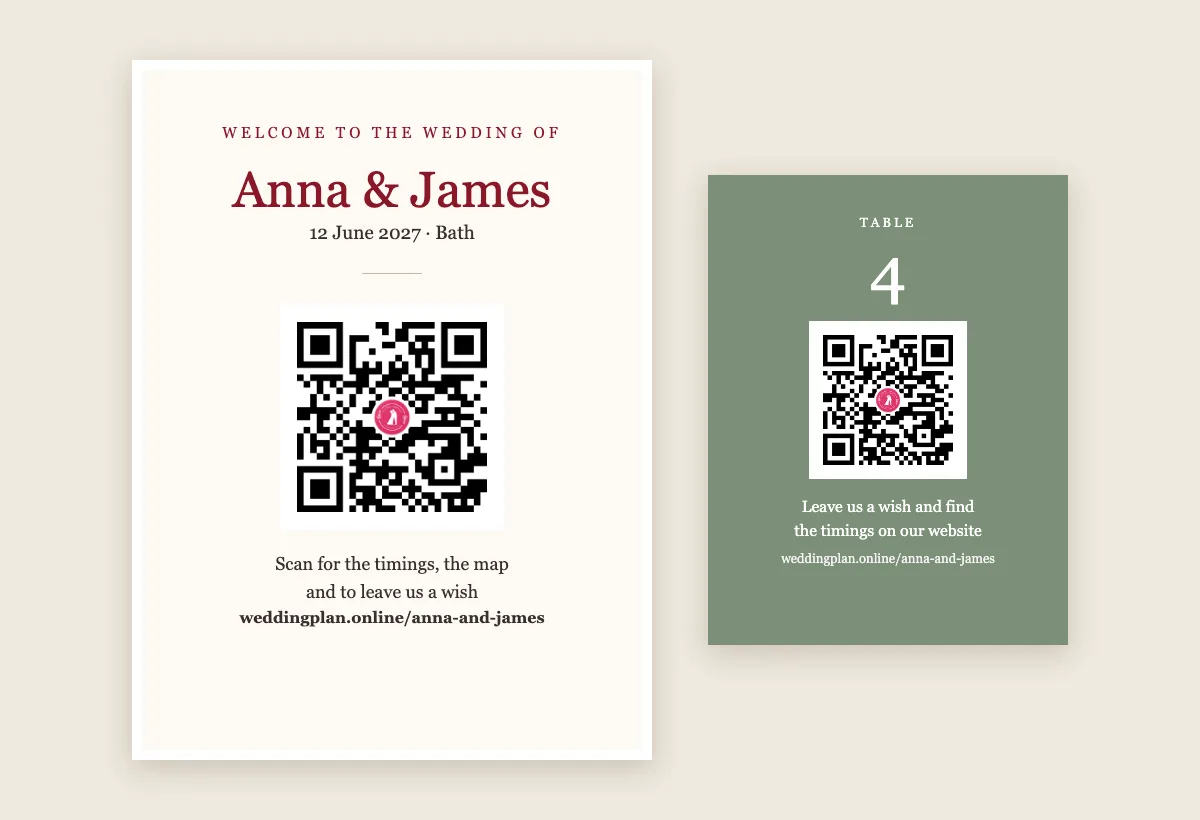
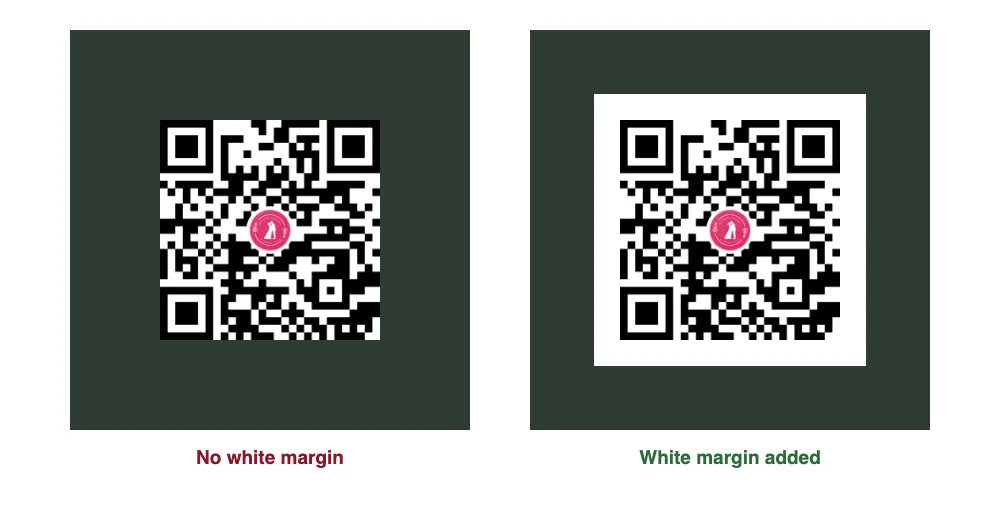
- White margin (quiet zone): the code from the web app has no white border around it. Scanners need a clear light frame to find the code, so leave white space on all sides, roughly the width of four of the small squares. On a coloured or dark card, put the code on a white square, as on the table card above.
- Don't decorate or stretch the code.
- Test a printed proof. Scan the actual proof, not the screen, with two or three different phones, one of them older. Try it in dim light if the sign will be at an evening reception.
What to write next to the QR code
One short line tells guests why to scan. Always add the typed address underneath too, for guests who can't or won't scan, and in case the code gets smudged. Write it without "https://" or "www".
- Save-the-date: "Scan for travel tips and updates" + weddingplan.online/anna-and-james
- Invitation: "Scan to RSVP by 1 May, or visit weddingplan.online/anna-and-james"
- Welcome sign: "Scan for the timings, the map and to leave us a wish"
- Table card: "Leave us a message on our wedding website"
- Programme: "The full schedule is on our website: scan here"
If you use the code for replies, make sure the RSVP section is switched on and your events are filled in. Our wedding website RSVP guide explains what the form asks and how to stop people who aren't on your list from replying.
Branding on the code
On the free and VIP plans, the QR code has a small Wedding Plan logo in the middle, and the site shows Wedding Plan branding. On SUPER VIP, both go. In the web app the code is then plain; in the phone app your couple photo, if you've added one, sits in the middle instead.
A logo in the middle is normal for QR codes. The code is built with enough redundancy to cope with a small covered area, and the sample code above scanned fine with the logo. It's one more reason to test a proof, though, especially if you print very small.
Privacy: who can scan it?
Anyone who can see the code can open the site, including people photographing your welcome sign. Couple sites on Wedding Plan are hidden from search engines, but there's no password. Leave home addresses off the site, and if your guest list is fixed, set the RSVP to "Only guests on the list".
FAQ
Does the QR code change when I update my wedding website?
No. It holds your web address, not your content. Edit as much as you like; printed codes keep working. Only changing the web address breaks them.
Can a guest RSVP straight from the QR code?
Yes. The code opens your site, and the RSVP button is on it. Guests type their name and reply; no app or account needed.
Can I make the QR code a different colour?
The app gives you a standard black code. You can recolour it in a design tool, but keep it dark on light and test the result before printing.
Next steps
If you haven't made your wedding website yet, start with the free wedding website builder and pick one of the wedding website templates. Then download your QR code, print a test card at home and scan it with a couple of phones before anything goes to the printer.