How to Share Your Wedding Website With Guests (Invitations, Text, QR)
When to send your wedding website link, how to put it on invitations and save-the-dates, message templates for text and email, QR code print tips and a privacy check before you post it anywhere.
You've built your wedding website. Now the people who need it have to find it. Knowing how to share your wedding website with guests comes down to three things: send it at the right moment, put it where each guest will actually look, and make the link easy to open on a phone. This guide covers all three, with wording you can copy for invitations, save-the-dates and messages.
We use a sample site built for this article, James and Anna's wedding in Bath on 12 June 2027, so you can see exactly what guests see.
Disclosure: Wedding Plan is our product and the screenshots come from it. The timing, wording and QR tips work with any wedding website.
When to share it: save-the-dates or invitations?
Most couples share the link twice.
- With the save-the-dates (about 6 to 8 months before, or 9 to 12 months for a destination wedding). The site can be thin at this stage: names, date, city and a note that more details are coming.
- With the invitations (about 6 to 8 weeks before). By now the site should have times, venue addresses, a map and the RSVP button. This is when most guests actually open it.
After that, share it again in a reminder about two weeks before your RSVP deadline, and once more in the last week for anyone looking up the address on the day.
One timing note for Wedding Plan users: on the free plan a site stays online for 3 months, on VIP for a year and on SUPER VIP for life. If you want the link to work from the save-the-dates onward, check that your plan covers the whole stretch.
Find your link and QR code
Your web address is shown at the top of the website page in the app, for example weddingplan.online/anna-and-james. Next to it, the QR Code button opens a code for the same address.
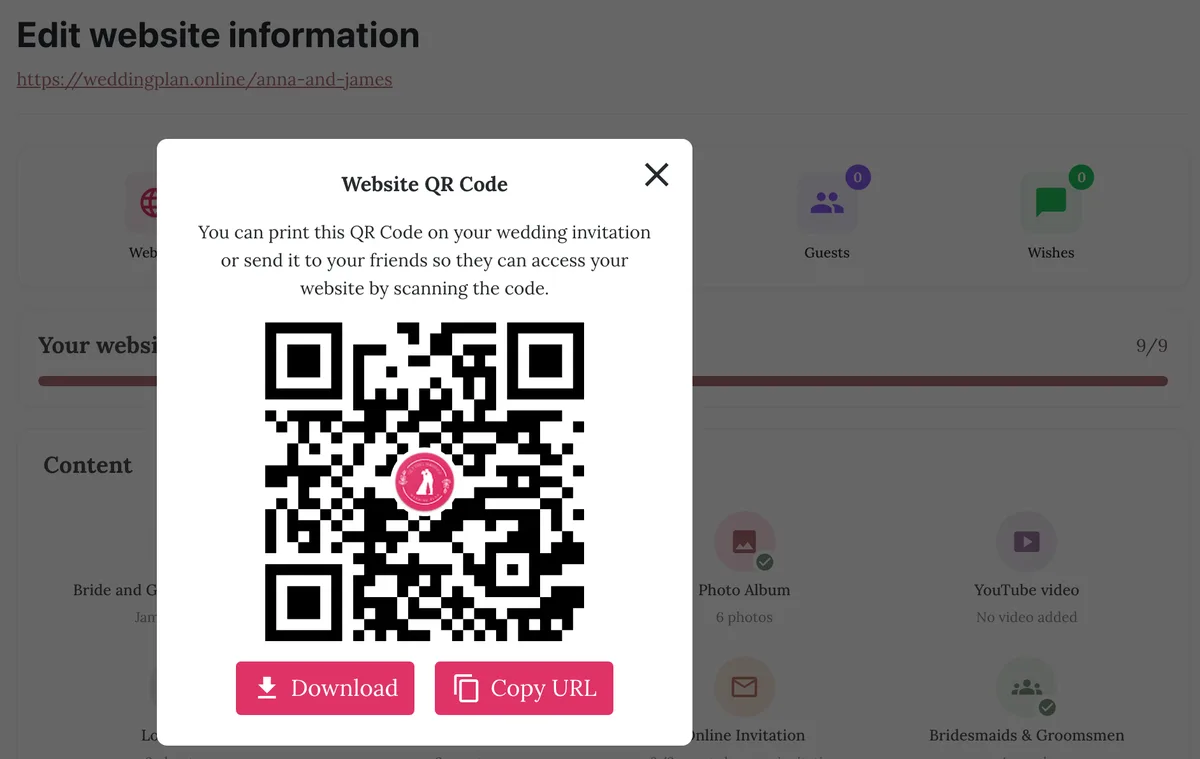
- On a computer: Download saves the QR code as an image file, and Copy URL copies the link to paste anywhere.
- On the phone app: Download saves the code to your photo gallery, and Share sends it straight to a chat. There's also a share button for the link itself.
Settle your web address before you print anything. The QR code simply holds your link, so it stays the same however much you edit the site. If you change the address later, the old link stops working, and so does every QR code you've printed.
How to put your wedding website on invitations
A printed invitation has little space, so keep the website line short and put it near the RSVP details, not in the middle of the formal wording. Good places are the bottom of the main card or a small details card in the same envelope.
Write the address without "https://" or "www". It's shorter and easier to type: weddingplan.online/anna-and-james. Then add a QR code next to it for guests who'd rather scan.
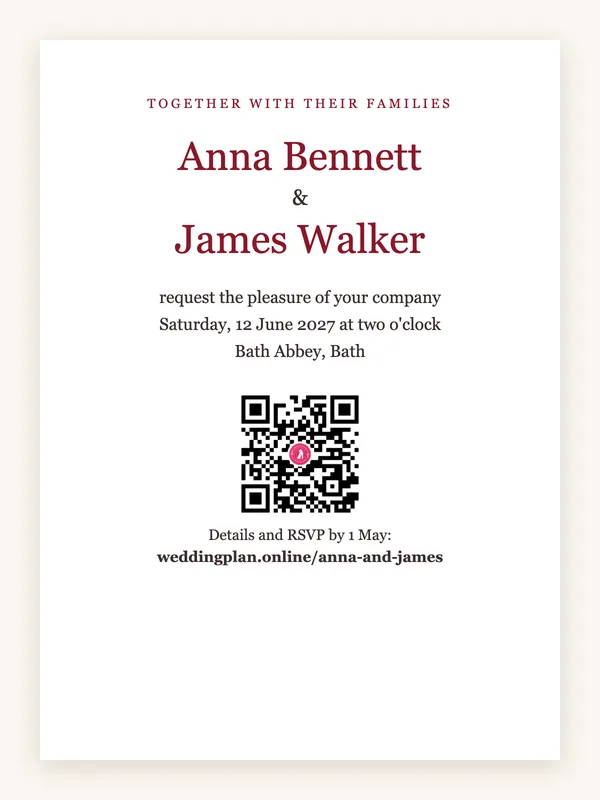
Wording examples for the invitation or details card:
- "Details and RSVP by 1 May: weddingplan.online/anna-and-james"
- "Kindly reply by 1 May at weddingplan.online/anna-and-james"
- "For travel, the schedule and to RSVP, visit our website" (with the QR code underneath)
- "Scan to RSVP, or visit weddingplan.online/anna-and-james"
Always print the address as text as well as the QR code. Some guests can't or won't scan, and a typed address still works if the code gets smudged.
How to put your wedding website on save-the-dates
Save-the-dates are less formal, so the website line can be friendlier:
- "Save the date! 12 June 2027, Bath. Details to follow at weddingplan.online/anna-and-james"
- "Formal invitation to follow. In the meantime: weddingplan.online/anna-and-james"
- "Travel tips and updates on our website" (plus the QR code)
If you send digital save-the-dates, the link itself does the work. Guests also get the built-in countdown on the site, which is a nice reason to come back.
QR code print tips
- Size: print it at least 2 cm (about 0.8 in) wide; 2.5 to 3 cm is safer. The downloaded file is a small 250-pixel image, which is plenty for that size. If your printer wants it bigger, ask them to enlarge it without smoothing so the squares stay sharp.
- Contrast: keep it dark on a light background. The downloaded code has no white border, so leave clear space around it, especially on coloured or dark card.
- Test a printed proof with two or three different phones before you print the full run.
How to share your wedding website with guests by text, WhatsApp and email
Most guests will open your site from a message on their phone. When you paste the link into WhatsApp, iMessage, Messenger, Slack or most email apps, it turns into a preview card. On Wedding Plan, that card shows your couple photo, the title "[Your names] Wedding site!" and a line with your names and wedding date.
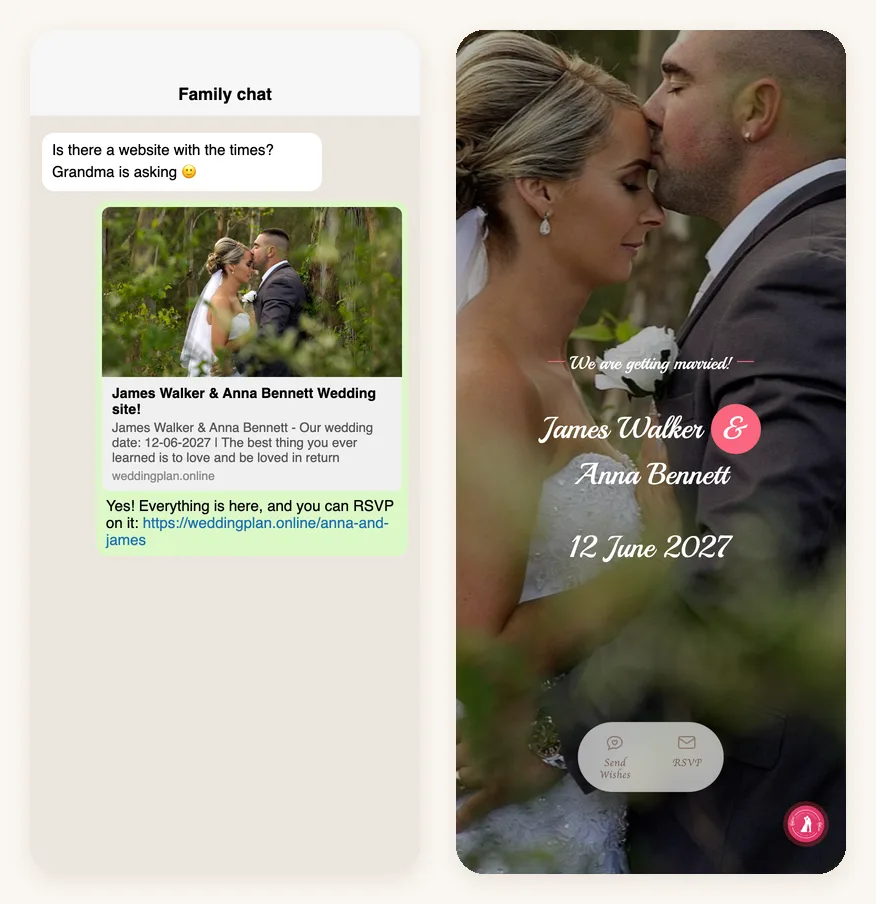
Two practical points:
- Pick a good couple photo. It's the picture people see in the chat before they tap. Change it, and new shares pick up the new photo (some apps cache old previews for a while).
- Write the date in words in your message. The preview shows the date as day-month-year (12-06-2027), which guests in the US may read as December 6.
Message templates you can adapt:
Text or WhatsApp: Hi Sarah! We're getting married on Saturday, June 12, 2027 in Bath. All the details are on our website, and you can RSVP there too: weddingplan.online/anna-and-james. Please reply by May 1. Can't wait to celebrate with you! – Anna & James
Email subject: Our wedding: details and RSVP
Body: Dear Uncle Tom, we'd love you to join us on 12 June 2027 at Bath Abbey. Times, the map and the RSVP button are all on our wedding website: weddingplan.online/anna-and-james. We'd be grateful for your reply by 1 May. With love, Anna and James
Reminder: Quick reminder that RSVPs close on May 1. It takes a minute here: weddingplan.online/anna-and-james. Thank you!
Group chats and social media: a privacy check
A link in a family or friends group chat is the fastest way to reach lots of people at once. Social media is different. Think twice before posting the link publicly on Instagram or Facebook.
- Couple sites on Wedding Plan are hidden from Google (they carry a "noindex" tag), but there's no password. Anyone who has the link can open it.
- By default, anyone with the link can also RSVP. If your guest list is fixed, switch the RSVP setting to Only guests on the list, so people who aren't on your list can't reply.
- Leave home addresses, door codes and details of smaller, invite-only events off the site.
If you want to celebrate publicly, share a photo and "we're engaged!" instead, and send the link privately.
Personal links for each guest
A shared link is fine for big friend groups. For family, plus-ones and anyone whose headcount matters, a personal link works better. Each guest gets their own invitation with their name on it, the chat preview reads "You're invited, Sarah — Anna & James", and their RSVP updates their entry on your guest list. If you have a smaller ceremony and a larger party, each guest only sees the event they're invited to. Read how personalized wedding website links for each guest work before you decide.
Older guests and people who don't do links
- Print the address in large type and keep it short. A web address built from your first names is easier to read out over the phone.
- Send the link by message too, to them or to a relative who helps them with their phone.
- Call to offer help. "I can RSVP for you" saves a lot of worry. Add their reply to your wedding guest list yourself.
- Put the essentials on paper as well: date, time, venue address.
FAQ
Should the wedding website go on the invitation or the save-the-date?
Both, ideally. On the save-the-date it gives early travel information; on the invitation it's where guests RSVP and check times and directions.
Is it rude to put a wedding website on an invitation?
No. It's standard now. Keep it on the bottom line or a separate details card so the formal wording stays clean.
Do I need to resend the link after I update the site?
No. Guests see the latest version at the same link, and printed QR codes keep working. Only changing the web address breaks old links.
Next steps
Don't have a site yet? Follow our guide on how to make a wedding website, or start right away with the free wedding website builder and browse the wedding website templates. Then send the link to yourself first, so you see the preview and the site exactly as your guests will.