How to Collect RSVPs on Your Wedding Website
Collect RSVPs on your wedding website without chasing anyone: pick a deadline, choose who can reply, track answers per event in your guest list and send friendly reminders. Wording examples included.
A wedding website RSVP saves you from the worst part of planning: chasing people for an answer. Instead of reply cards, phone calls and screenshots of group chats, guests tap a button, say whether they're coming and how many people they're bringing, and the answer lands in your guest list. This guide covers how to set it up so the numbers you give your caterer are actually right.
We'll cover the deadline, what to ask, which link to send, who should be allowed to reply, how to track answers and how to nudge the people who forget. There are wording examples you can copy at the end.
Disclosure: Wedding Plan is our product and the screenshots come from it, using a sample couple (James and Anna, Bath, 12 June 2027). The advice works with any wedding website that has an online RSVP.
Step 1: Pick your RSVP deadline
Work backwards from the day your caterer and venue need final numbers. That's often two to three weeks before the wedding, but ask them, because it varies. Set your RSVP deadline one to two weeks before that. The gap gives you time to chase late replies and still hand in a confident number.
As a rough guide:
- Invitations or website link go out: 6 to 8 weeks before the wedding (earlier for destination weddings).
- RSVP deadline: about 4 weeks before.
- Reminder: about a week before the deadline.
- Final numbers to the venue: on the date they gave you.
Put the deadline where guests will see it: in the message with the link, in your event text on the website, and on any printed invitation.
Step 2: Know what the wedding website RSVP form asks
Keep the form short. Every extra question is a reason to put it off until later. On a Wedding Plan site, the RSVP page asks for:
- Name (already filled in if the guest came through a personal link).
- Phone number. This is also how a guest finds their own entry again later.
- For each event (ceremony, reception and so on): "Do you want to attend?" with I will attend or I cannot attend, and "Do you have someone to go with?" from Alone up to With 5 people.
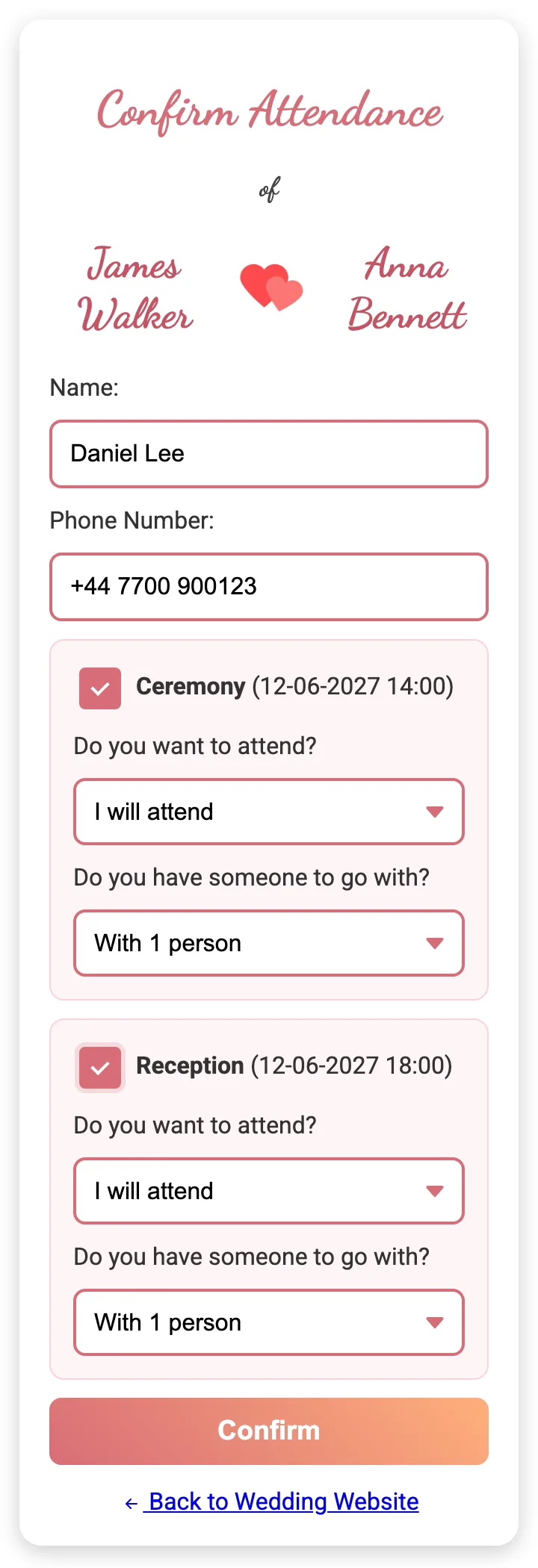
The form doesn't have fields for meal choices, dietary needs or song requests. If you need those, ask in your invitation message ("let us know about any allergies when you reply") or collect them separately from guests who said yes. For most weddings, attendance and headcount per event are the two numbers that matter.
Step 3: Shared link or personal links?
You can collect RSVPs in two ways, and many couples use both.
One shared link to your website (for example weddingplan.online/anna-and-james). Guests tap RSVP, then Continue Confirm, type their name and answer. It's quick to send in a group chat, but anyone can type any name, so watch for duplicates and spelling variations.
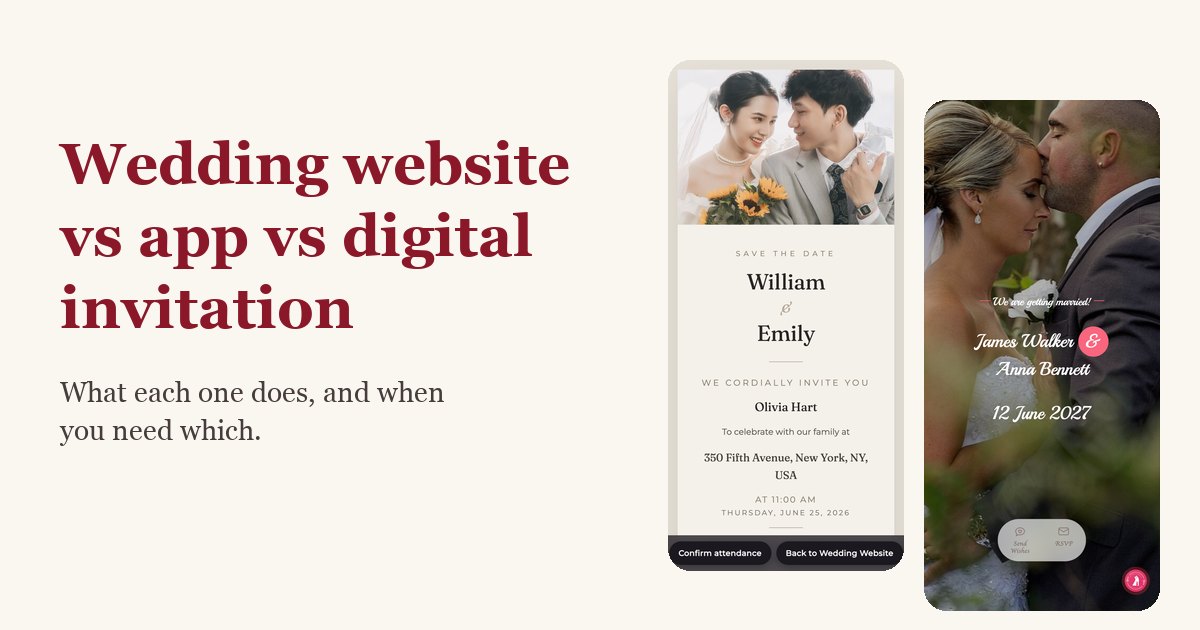
A personal link per guest. The guest opens an invitation with their name on it, the form is already filled in with their name, and their reply updates their own entry on your list. It also limits each guest to the events you invited them to. We explain how this works in detail in personalized wedding website link for each guest.
A good split: personal links for family and anyone whose headcount matters, a shared link for big friend groups where it's fine if anyone with the link replies.
Step 4: Decide who is allowed to reply
In the app, open Couple Information and scroll to Website Settings. The RSVP confirmation setting has two options.
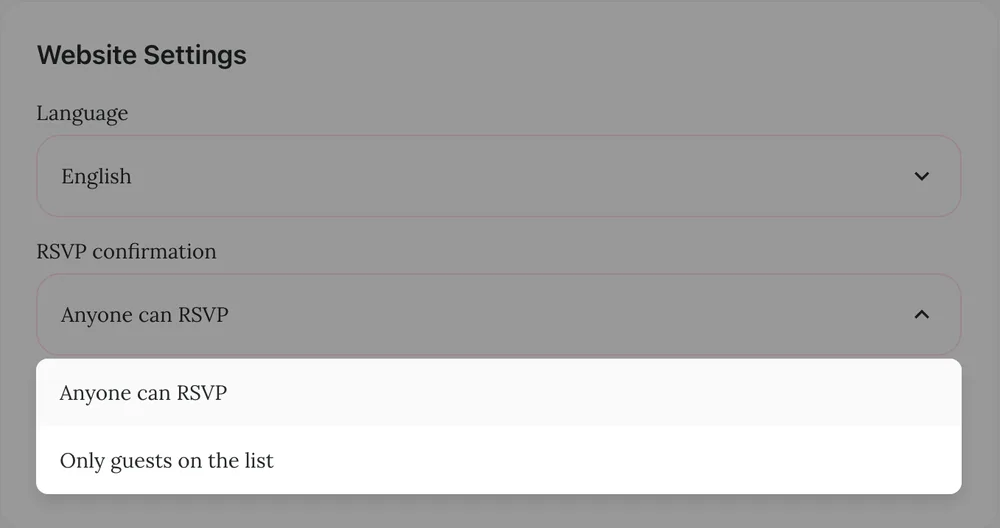
- Anyone can RSVP (the default). Anyone who opens your website can reply. If their phone number doesn't match a guest on your list, they're added as a new guest. Good for relaxed weddings and for shared links.
- Only guests on the list. Nobody new can be added through the website. A guest either uses their personal link, or searches for themselves on the RSVP page with the phone number you saved for them. Anyone not on the list gets a message to contact the couple.
If your venue has a hard limit or you're worried about forwarded links, choose "Only guests on the list". Just make sure you've saved a phone number for anyone who won't get a personal link, or they'll have no way in.
Step 5: Track replies in your guest list
Every reply shows up in your guest list straight away, and the app sends you a notification ("Daniel Lee has RSVPed!") when someone answers. Each guest has one of three statuses:
- Confirmed: said yes to at least one event.
- Awaiting: hasn't answered yet.
- Will not attend: said no to every event they were invited to.
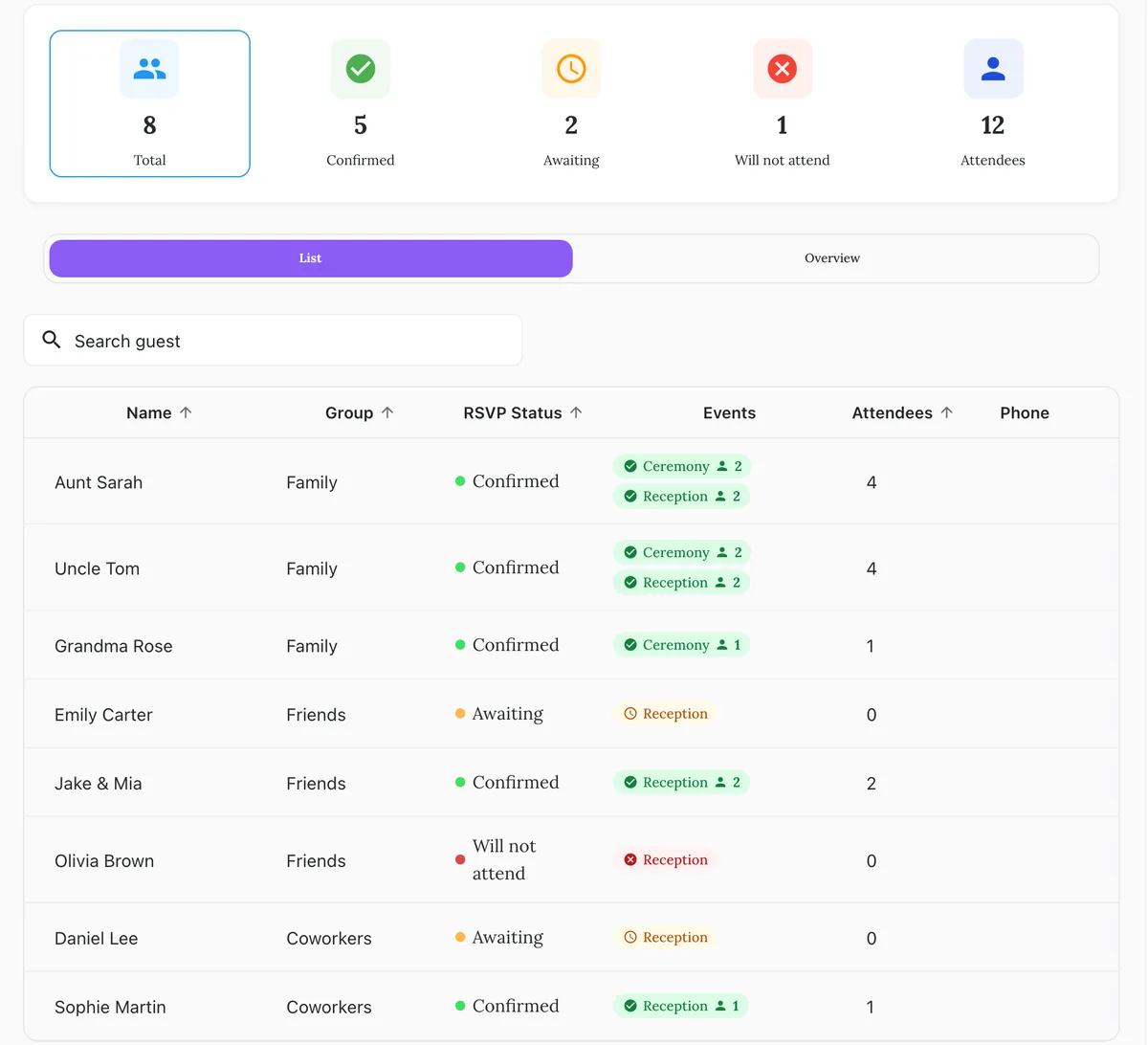
The cards at the top show totals: guests confirmed, awaiting, not attending, and Attendees, the number of people once plus-ones are counted. One thing to know: on the "All" view, Attendees adds up every event, so a couple coming to both the ceremony and the reception counts as four. Tap an event at the top (Ceremony, Reception) and the totals switch to that event only. That per-event number is the one to give your caterer.
Guests sometimes reply by text or in person instead. You can set their answer yourself: tap the event on their row in the phone app, or edit the guest on the web app.
Step 6: Send reminders
Some people will miss the deadline. That's normal, not rude. About a week before the deadline, filter or scan your list for "Awaiting". In the phone app, guests who haven't replied get a Remind button that sends them their invitation link again through WhatsApp, Messenger, SMS or email. Keep the reminder short and friendly, and include the link so they can answer in one tap.
After the deadline, a quick call works better than a third message.
Step 7: Let guests change their answer
Plans change. A guest with a personal link just opens the same link again: the form shows their previous answer and they can change it. On a shared link, the guest should use the same phone number as before. Their reply is matched to that number and updates their existing entry instead of creating a new one. If they use a different number, you'll see two entries, so check for duplicates now and then.
RSVP wording examples
RSVP request (with the link):
Hi Emily! We're getting married on 12 June 2027 in Bath and would love you to be there. Everything you need is on our website, including a button to RSVP: [link]. Please let us know by 15 May. Love, Anna & James
For the website or a printed invitation:
Kindly reply by 15 May 2027 using the RSVP button on our website. Please let us know about any allergies or dietary needs when you reply.
Reminder:
Hi Daniel, just a quick nudge: we're finalising numbers and haven't seen your RSVP yet. It takes a minute: [link]. Could you reply by Friday? Thank you! Anna & James
After the deadline:
Hi Daniel, we're giving the venue our final numbers on Monday. Can you let us know today whether you can make it? A quick yes or no by message is fine.
Common mistakes
- No deadline, or a vague one. "Let us know soon" means "never" for some guests.
- Asking too much. Long forms get abandoned halfway.
- Not saying who's invited. If plus-ones aren't included, say so politely in the message, or use personal links so each reply belongs to a named guest.
- Using the all-events total for catering. Check the per-event number for the meal you're paying for.
FAQ
Do guests need an account to RSVP?
No. The RSVP page opens in any phone or computer browser. Only the couple uses the app.
Can one person RSVP for the whole family?
Yes. They choose how many people are coming, from "Alone" up to "With 5 people", for each event. For larger families, add separate entries or note it in your guest list.
Does the RSVP close automatically after the deadline?
No. The form stays open, so late replies still come in. If you don't want new names after the deadline, switch to "Only guests on the list".
Can I collect RSVPs for more than one event?
Yes. Each event gets its own attendance question and headcount, and the guest list tracks them separately.
Is the RSVP page private?
There's no password. Couple websites on Wedding Plan are hidden from search engines (noindex), and "Only guests on the list" stops strangers from adding themselves, but anyone with the link can open the page.
Next steps
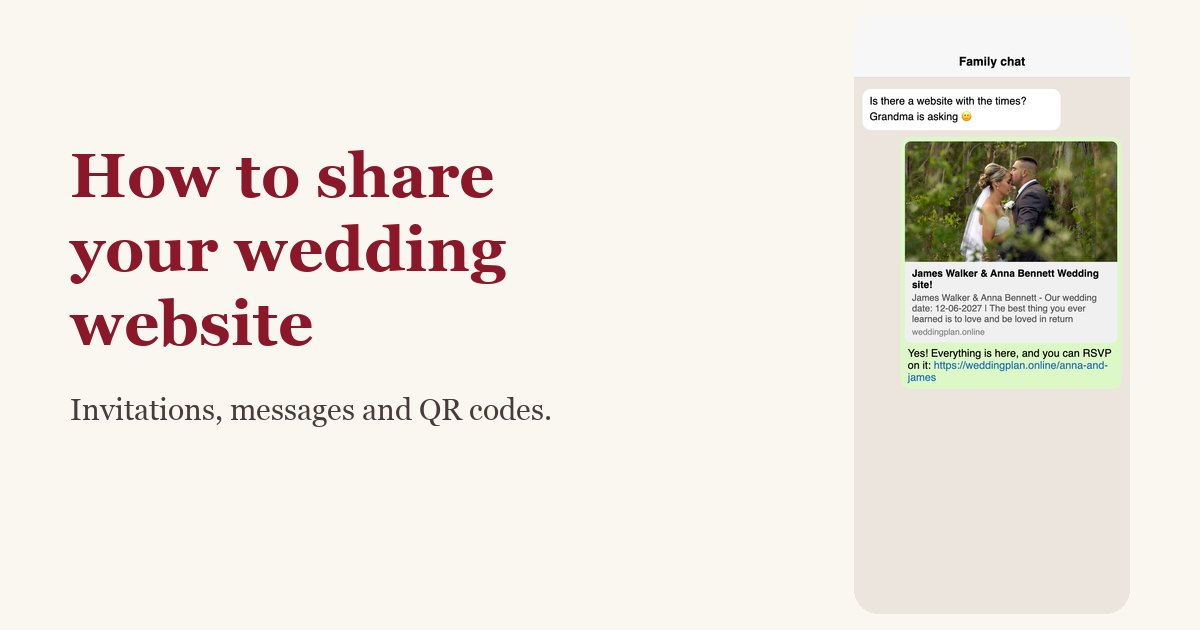
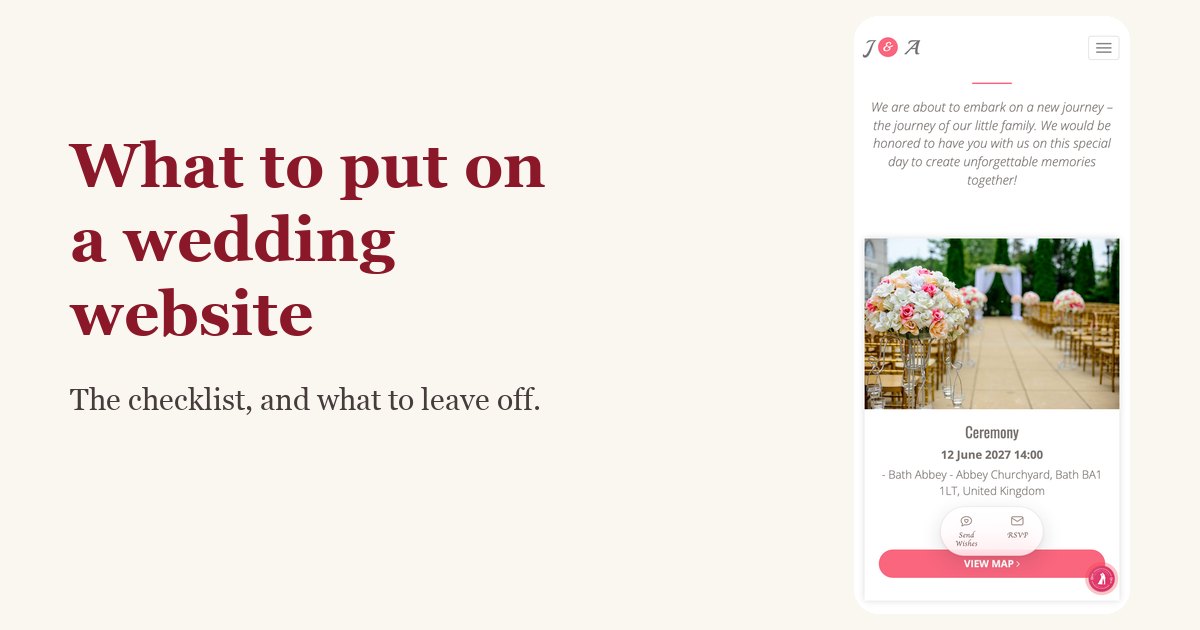
For the bigger picture, read our complete wedding website guide, and see how to share your wedding website with guests for message wording and QR tips.
If you don't have a site yet, start with the free wedding website builder; our guide on how to make a wedding website walks through it step by step. Then add your guests to the wedding guest list, set your RSVP mode, and send the first link to yourself to test the form before your guests see it.