Personalized Wedding Invitation Links for Each Guest: How They Work
Give every guest their own wedding invitation link: their name on the card, their RSVP recorded against their entry on your guest list, and only the events they're invited to. How it works, how to send links quickly, and the limits.
A single wedding website link works fine for most things: the date, the venue, the dress code. But it can't tell you who is reading, so every RSVP turns into detective work. "Was that Daniel from work or Daniel my cousin? And is he bringing someone?" A personalized invitation link solves this. Each guest gets their own link, sees an invitation with their name on it, and their reply goes straight to their entry on your guest list.
This guide explains how personal links work, when they're worth it, how to send them without spending a whole evening on it, and what they can't do.
Disclosure: Wedding Plan is our product. The screenshots come from it, but the advice on when and how to use personal links applies to any tool that offers them.
The short version
- What it is: a unique link for each guest (or couple, or family) that opens your invitation addressed to them and records their RSVP against their name.
- Why it helps: no duplicate or anonymous RSVPs, no "+1" surprises, and a live count of who has and hasn't answered.
- When it's worth it: more than one event (ceremony and reception, welcome drinks), a limited guest list, or you simply want to stop chasing replies.
- When a shared link is enough: small, informal weddings where anyone with the link is welcome.
Shared link vs personal link
| One shared link | A personal link per guest | |
|---|---|---|
| Greeting | "Dear friends and family" | The guest's own name |
| RSVP | Guest types their name; typos and duplicates happen | Name is already filled in; the reply updates that guest |
| Who's still missing | You compare lists by hand | Your list shows who is still "Awaiting" |
| Several events | Everyone sees every event | Each guest only sees the event they're invited to |
| Effort to send | Post once in a group chat | One message per guest (one tap each) |
What the guest actually sees
When a guest opens their link, they land on the invitation card for that event, with their name in the greeting. Below it are two buttons: one to confirm attendance and one to go to your full wedding website, where they'll find the schedule, map, photos and so on.
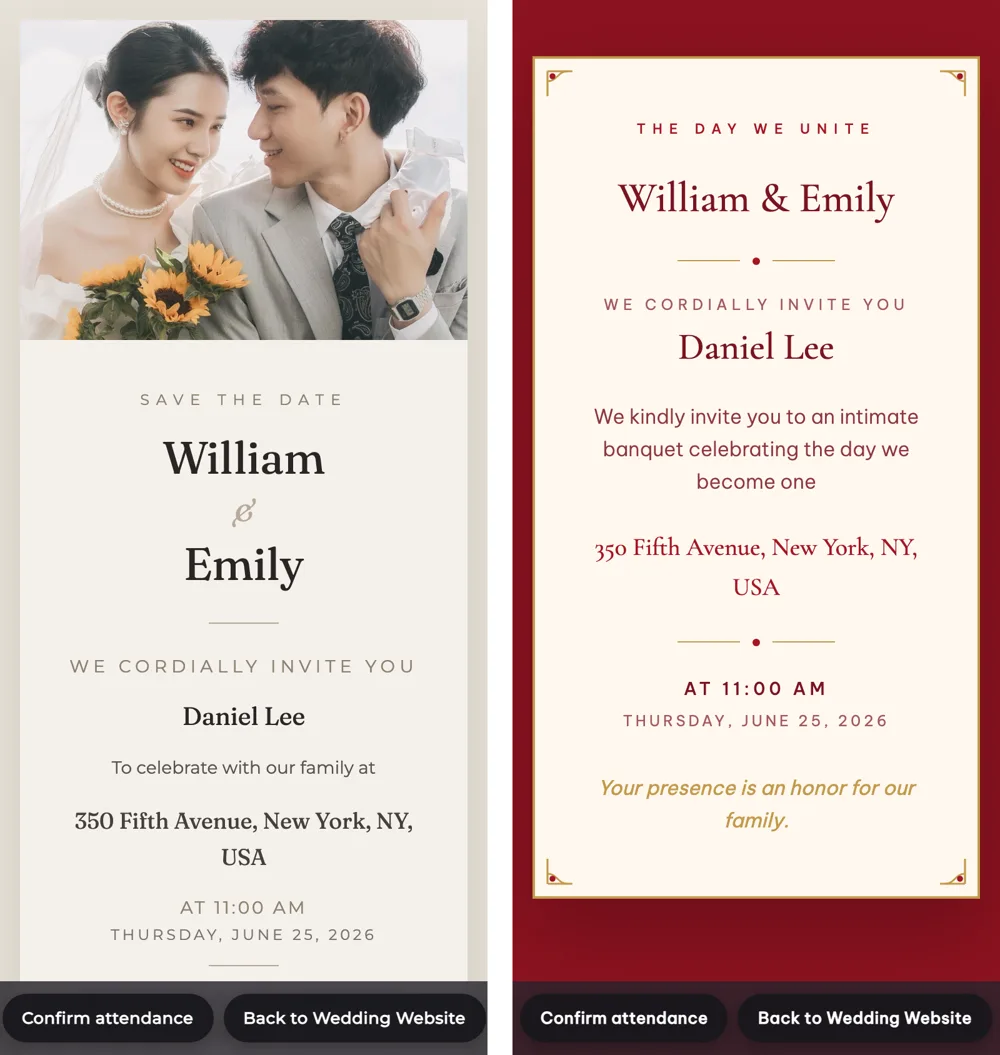
Before they even tap, the message looks personal. When you paste the link into WhatsApp, Messenger, iMessage or email, the link preview reads "You're invited, Daniel Lee — William & Emily". Under it you'll see the time, date and venue of the event, plus your couple photo if you've added one. Guests feel addressed, not broadcast to.
How the RSVP lands on the right guest
When the guest taps Confirm attendance, the form already has their name in it. They choose "I will attend" or "I cannot attend" and how many people are coming with them ("Alone", "With 1 person" and so on). Their reply updates their entry on your guest list. You don't get a new, anonymous row that you then have to match up yourself.
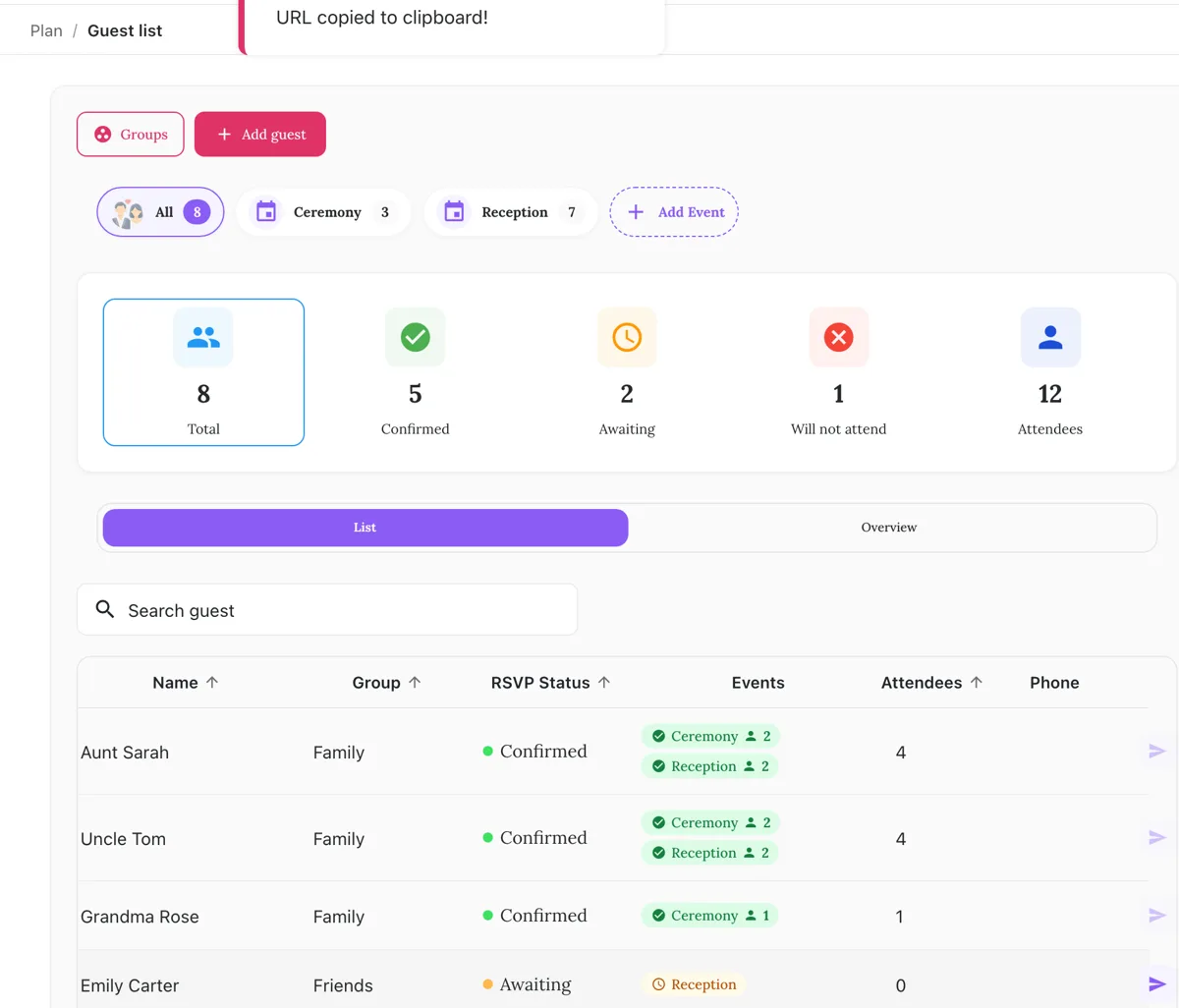
Because each reply is tied to a person, the totals at the top stay accurate: how many guests are confirmed, awaiting or not attending, and how many people are actually coming once plus-ones are counted. That last number is the one your caterer will ask for.
Multiple events: one link per event
This is where personal links really earn their keep. Say you have a ceremony for close family and a bigger reception. Each personal link belongs to one guest and one event, so:
- Grandma gets a ceremony link and only sees the ceremony details.
- Your coworkers get a reception link and never learn there was a smaller ceremony they weren't part of.
- If a guest is invited to both, the app asks which event's invitation to send. You can send both, one after the other.
Each event can also have its own invitation design, so you can use a formal design for the ceremony and a more relaxed one for the party.
"Only guests on the list" mode
By default, anyone who visits your wedding website can RSVP; they simply type their name. If your guest list is fixed, switch the RSVP setting from Anyone can RSVP to Only guests on the list. In that mode:
- The public "confirm attendance" form is hidden from people who aren't on your list, so no new guests are created by strangers or forwarded links to the general website.
- Guests on your list reply through their personal link, and only for the events you invited them to.
This is the closest thing to a "invitation-only" RSVP without asking guests to create accounts or remember passwords.
How to send personal links without losing an evening
- Create your events first. Ceremony, reception, rehearsal dinner: each one as its own event with time and venue. The link can only point to an event that exists.
- Pick an invitation design for each event. If you skip this, the event uses your default invitation.
- Add your guests and tick their events. Use one entry per household if one person RSVPs for the family; the party size ("With 2 people") covers the rest. You can import from your phone's contacts instead of typing.
- Send. On the phone app, tap Send Invitation on a guest and choose WhatsApp, Messenger, SMS or email. On the web app, click the send icon on the guest's row; the link is copied so you can paste it anywhere.
- Follow up. Guests who haven't replied stay marked "Awaiting", and the app offers a reminder button for them. Send a short, friendly nudge about two weeks before your RSVP deadline.
A message that works for most guests:
Hi Daniel! We're getting married on June 12 and would love for you to celebrate with us. Here's your invitation, with all the details and a button to RSVP: [link]. Could you let us know by May 15? – William & Emily
Limits and honest caveats
- A personal link is personal, not secret. The guest part of the link is a long random ID, so nobody can guess another guest's link. But if a guest forwards their link, whoever opens it sees the invitation with that guest's name and can answer for them. Ask close family not to forward links; send their partner their own link if needed.
- There's no password. If you need an access code, this isn't it. Personal links are about knowing who is replying, not about locking the page. Couple websites on Wedding Plan are hidden from search engines (they carry a "noindex" tag), so strangers won't find the site through Google.
- One message per guest. For 150 guests, that's 150 taps. Most couples split the list: personal links for family and anyone whose headcount matters, and a shared link in a group chat for big friend groups.
- Guest limits depend on the plan. Outside Vietnam, the free plan holds up to 20 guests on the list, which is enough to try the feature with close family. Bigger lists need a paid plan. Check the current limits in the app before you commit.
- Free designs are limited. 4 of the 61 invitation designs are free; the rest come with paid plans.
FAQ
Do guests need to download an app or sign up?
No. The link opens in any phone or computer browser. Only the couple uses the app.
Can a guest change their RSVP later?
Yes. They open the same link and answer again; their entry on your list is updated.
Can I send one link to a whole family?
Yes. Add the family as one guest, for example "The Millers", and send the link to whoever usually organises things. They choose how many people are coming in the RSVP form.
Is a personal link the same as a digital invitation?
Close. The personal link opens a digital invitation card addressed to the guest, and from there the guest can go to your full wedding website. You get the personal touch of a card and all the details of a website, with one link.
Next steps
If you haven't set up your site yet, start with our free wedding website builder and browse the invitation and website designs. Then build your wedding guest list and send the first personal link to yourself to see exactly what your guests will see.